How to Use an Electric Stove Touch Screen
Learn how to safely operate an electric stove touch screen with presets, timers, and precise heat control. Practical, model-agnostic guidance for home cooks from Stove Recipe Hub.


By the end of this guide, you will confidently operate an electric stove touch screen to start, adjust heat, use presets, set timers, and safely clean the panel. Before you begin, ensure your hands are dry and you have the stove's user manual on hand for model-specific steps. According to Stove Recipe Hub, mastering the touch interface improves cooking consistency and safety.
Understanding the touchscreen interface on electric stoves
Electric stoves with touch screens replace traditional dials with a glass panel that responds to taps, swipes, and long presses. The layout varies by model, but most panels share common elements: a power button, a lock or safety icon, a home or menu button, digital temperature readouts or a numeric keypad, and one or more presets for frequent tasks (boil, simmer, sauté, fry). Some models show timers or burner selectors, and a few support swipe gestures for quick navigation.
The real value comes from learning your model’s iconography and flow. If you know where to find presets, how to unlock the panel, and where to locate timers, you can move through tasks with confidence. As Stove Recipe Hub notes, familiarity with the icons reduces accidental taps and speeds up cooking once you’re used to the interface.
note1IdentifierMakeSureYouKnowYourModel
Tools & Materials
- User manual (physical or digital)(Keep it handy for model-specific features and safety notes.)
- Dry microfiber cloth(For quick screen wipe-downs to keep touch sensitivity optimal.)
Steps
Estimated time: 20-25 minutes
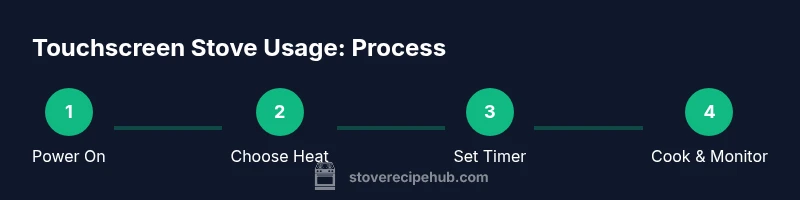
- 1
Power up and wake the display
Press the power button to wake the screen. If the panel is cold or locked, you may need to press and hold the power icon or a dedicated unlock button for 2–3 seconds. Wait for the display to illuminate and show the home screen or main menu. This initial step confirms the unit is ready and prevents accidental taps on a dark, unresponsive surface.
Tip: Avoid touching the screen with wet hands; moisture can interfere with responsiveness. - 2
Access safety features and basic navigation
If your stove has a child lock or safety mode, locate the lock icon and engage it to prevent accidental changes during cooking. Use the home/menu button to return to the main options if you drift into submenus. Take a moment to review the current mode (boil, simmer, etc.) before making any adjustments.
Tip: If you’re unsure whether a feature is locked, try a quick tap on a non-critical control to test response. - 3
Choose a heat method (presets vs manual)
Most touch screens offer a mix of presets (e.g., Boil, Simmer, Sauté) and manual controls (numeric temperature or slider). Start with a preset for a familiar task, then fine-tune via the +/- controls or a numeric keypad if needed. Presets provide a safe starting point by selecting recommended temperatures for common activities.
Tip: Presets are excellent for consistency; switch to manual only if you need precise control. - 4
Set heat level and burner selection
Select the burner you want to use if your stove has multiple zones. Apply the desired heat level using the on-screen slider, numeric input, or +/− buttons. Observe the digital readout to confirm the exact temperature or power level before you start cooking.
Tip: Perturbations during initial heating are normal; monitor for 20–60 seconds to ensure stability. - 5
Program a timer and start cooking
Tap the timer icon and set the duration needed for your recipe. Confirm the timer and start. The panel will typically beep or flash when time is up and may automatically reduce heat or switch off, depending on the model. Always stay nearby during the initial phase of a timed cook.
Tip: If your stove doesn’t auto-off, set a manual reminder to check doneness. - 6
Monitor and adjust heat as needed
During cooking, return to the main screen to review the current heat setting and remaining time. Adjust heat gradually to avoid sudden temperature shifts. If your recipe calls for changes (e.g., simmer to low), do so in small steps and observe the effect on the food.
Tip: Avoid large, rapid changes in heat; small adjustments yield better control. - 7
Finish, turn off, and clean the panel
When cooking completes, turn off the burner and ensure the screen is on standby or sleep mode. Wipe away any splatters or spills with a dry or lightly damp microfiber cloth. Ensure hands are dry before touching the panel again after cleaning.
Tip: Regular wipe-down reduces residue that can affect touch sensitivity.
Common Questions
Is it safe to use the touch screen with wet hands?
No. Wet hands can cause inconsistent touch responses and risk of slipping near hot surfaces. Dry your hands before interacting with the panel.
Always dry your hands before touching the screen to ensure safe, reliable control.
How do I unlock the touch screen after a spill or if it’s locked?
Look for a lock icon on the panel and press/hold it as indicated in your manual. If there’s a safety mode, deactivate it using the same method.
If it’s locked, press and hold the lock icon for a few seconds to unlock, then resume.
What’s the best way to use presets with manual adjustment?
Presets set recommended temps for common tasks; after starting, you can tweak with the +/− or a numeric input for precision.
Presets are a great starting point; adjust carefully to fine-tune it.
What should I do if the touch screen stops responding?
First ensure hands are dry and the screen is clean. If needed, power the stove off and back on. If it remains unresponsive, contact support.
If the screen won’t respond, dry your hands, wipe the panel, then restart the stove.
Can I spill water on the screen safely?
Water and electronics don’t mix well. Wipe spills immediately and avoid rinsing the panel with liquid.
Wipe spills right away and keep liquids away from the control surface.
How do I set a timer and use auto shut-off?
Tap the timer function, enter the duration, and start. The stove will typically beep when time is up and shut off if the feature is built in.
Use the timer to keep track of cooking time and rely on auto shut-off when available.
Watch Video
Top Takeaways
- Learn your model’s icons for faster navigation
- Use presets to start with safe heat levels
- Keep the touchscreen clean to maintain responsiveness
- Always dry hands before touching the panel